 Michel Pinna
Finland digital reporting update: PRH mandate, what you need to know
The digital transformation of corporate compliance in Finland just took a massive leap forward. Following a recent webinar by the Finnish Patent and...
If your reporting process involves copying figures, tables, or narrative text from spreadsheets or documents into a designed report, you already know the pain points: last-minute changes, duplicated effort, and the risk of inconsistencies. CtrlPrint Integrate is built to remove that friction by securely linking Excel and Word sources to Adobe InDesign and InCopy. So your designed report can be refreshed from the source when you decide, at the click of a button, with full control over access and versions.
This year’s Integrate updates focus on three things: faster adoption (use what you already have), safer updates (avoid surprises), and better visibility (know what changed and what needs attention). Highlights include linking existing InDesign tables to Excel, ignoring hidden rows and columns, relinking without reinserting, Microsoft Word as a data source, and improved handling of broken links.
Table of Contents
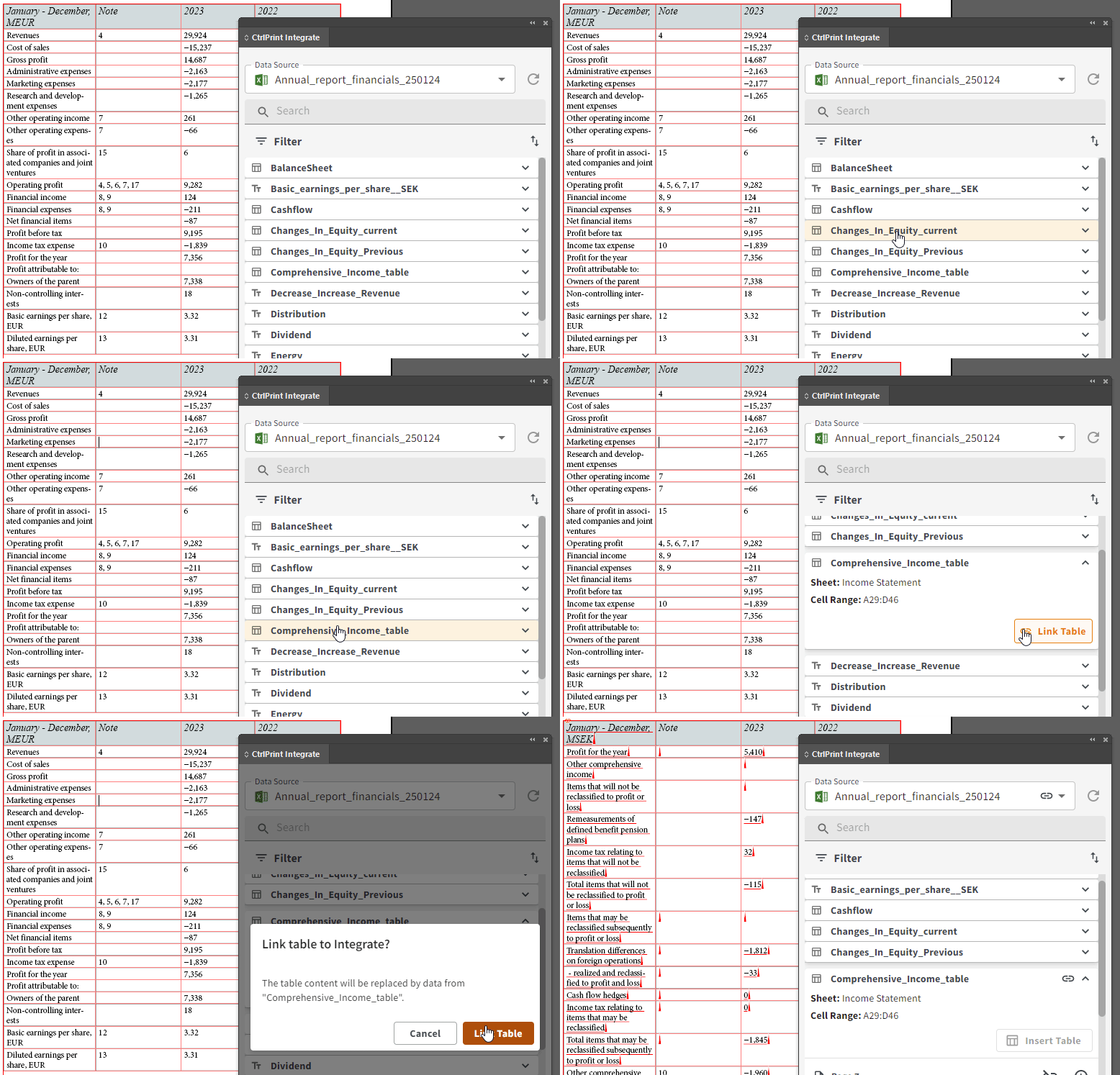
This is one of the biggest workflow upgrades this year: you can now link a table that already exists in your layout directly to a named range in Excel. The Excel data populates the table without forcing you to rebuild the design.
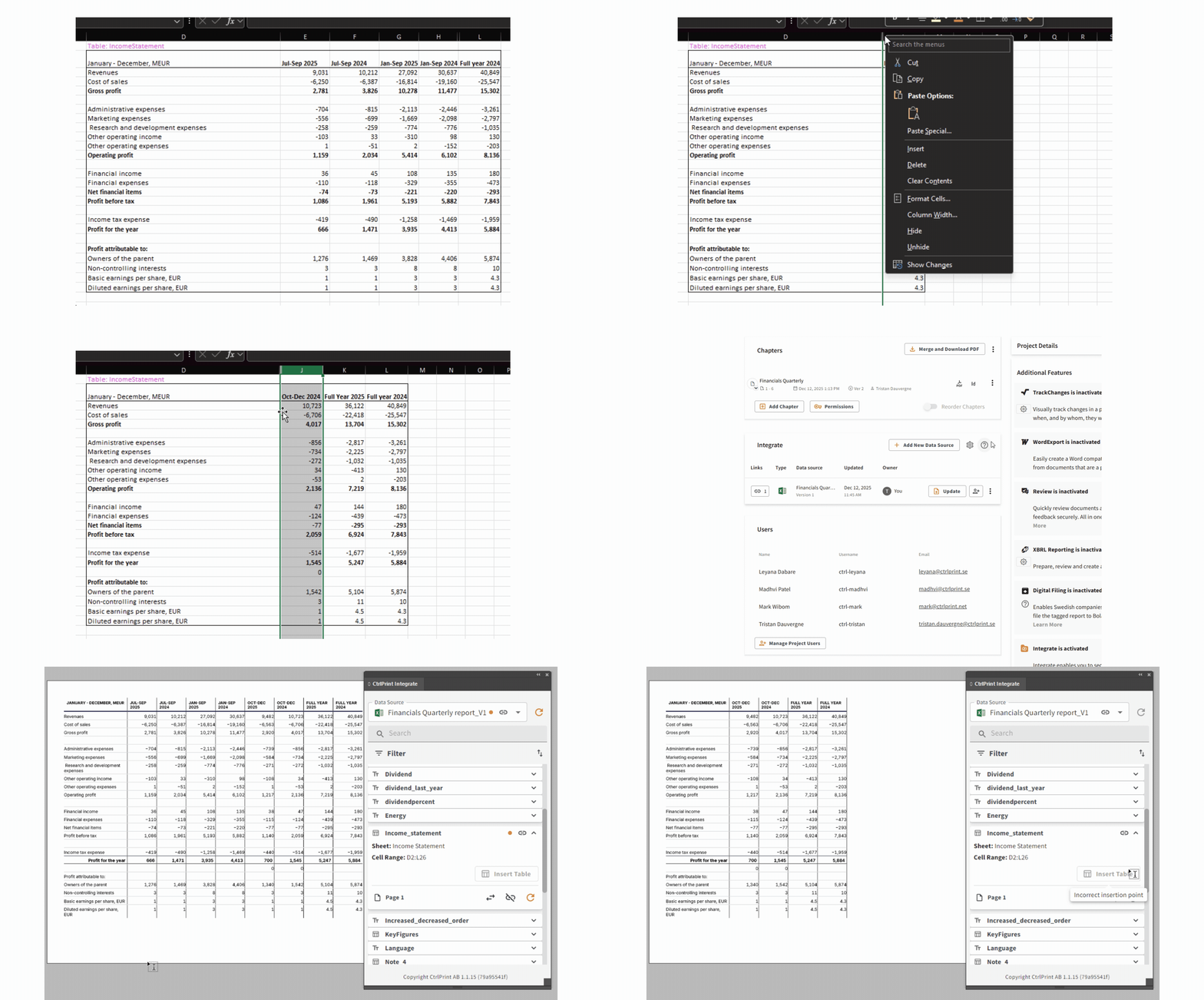
Hidden content in Excel is often used for calculations or supporting detail that should not appear in the final report. You can now choose to ignore hidden rows and columns when inserting tables, so only visible content is brought into the layout.
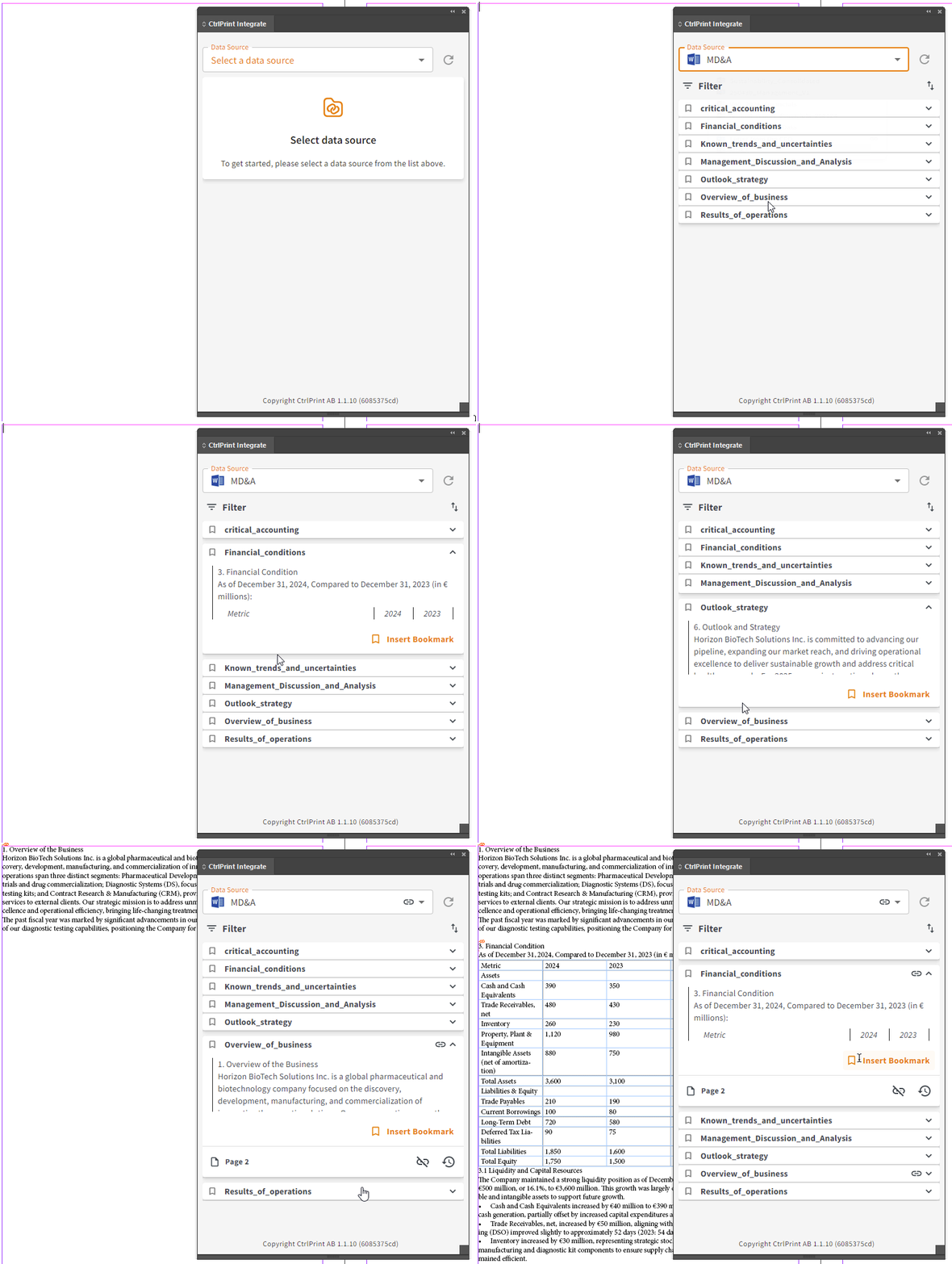
Integrate is no longer only about numbers. You can now use Word documents as data sources, either by inserting bookmarked sections or by placing an entire document as one item. Updates in Word can be pushed to the linked content in InDesign and InCopy.
Need to point a table or a text element to a different named range, or even a different data source, without losing formatting? The new Relink option lets you swap the source behind an existing placed element, keeping the design intact.
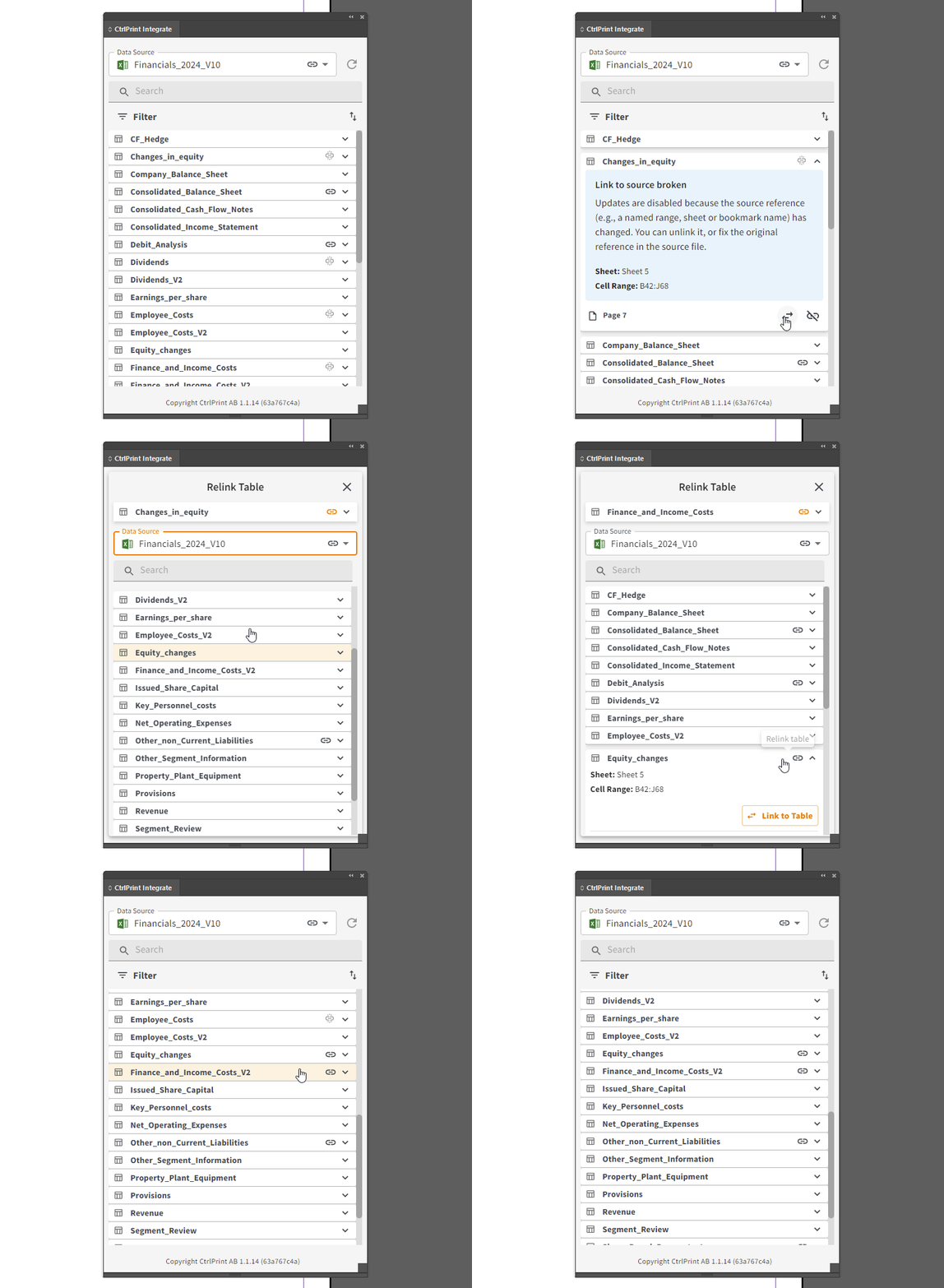
Documents move between projects all the time – and their data sources don’t always follow. When a linked Word/Excel data source is deleted or doesn’t exist in the current project, tables and text used to be “trapped” behind the scenes. The only workaround was to contact us or to recreate the content entirely.
Now, the Integrate panel in InDesign and InCopy:
If a named range is renamed or removed in Excel, Integrate flags it directly in the panel so you can quickly identify what is broken and choose whether to relink or unlink.
Throughout 2025, we’ve added quality of life improvements to the Integrate panel to help you manage complex documents with many linked tables and text elements.
To make it easier to stay on top of changes in larger projects, Integrate now gives you clear cues both in the panel and directly in the layout.
You will notice two types of cues:
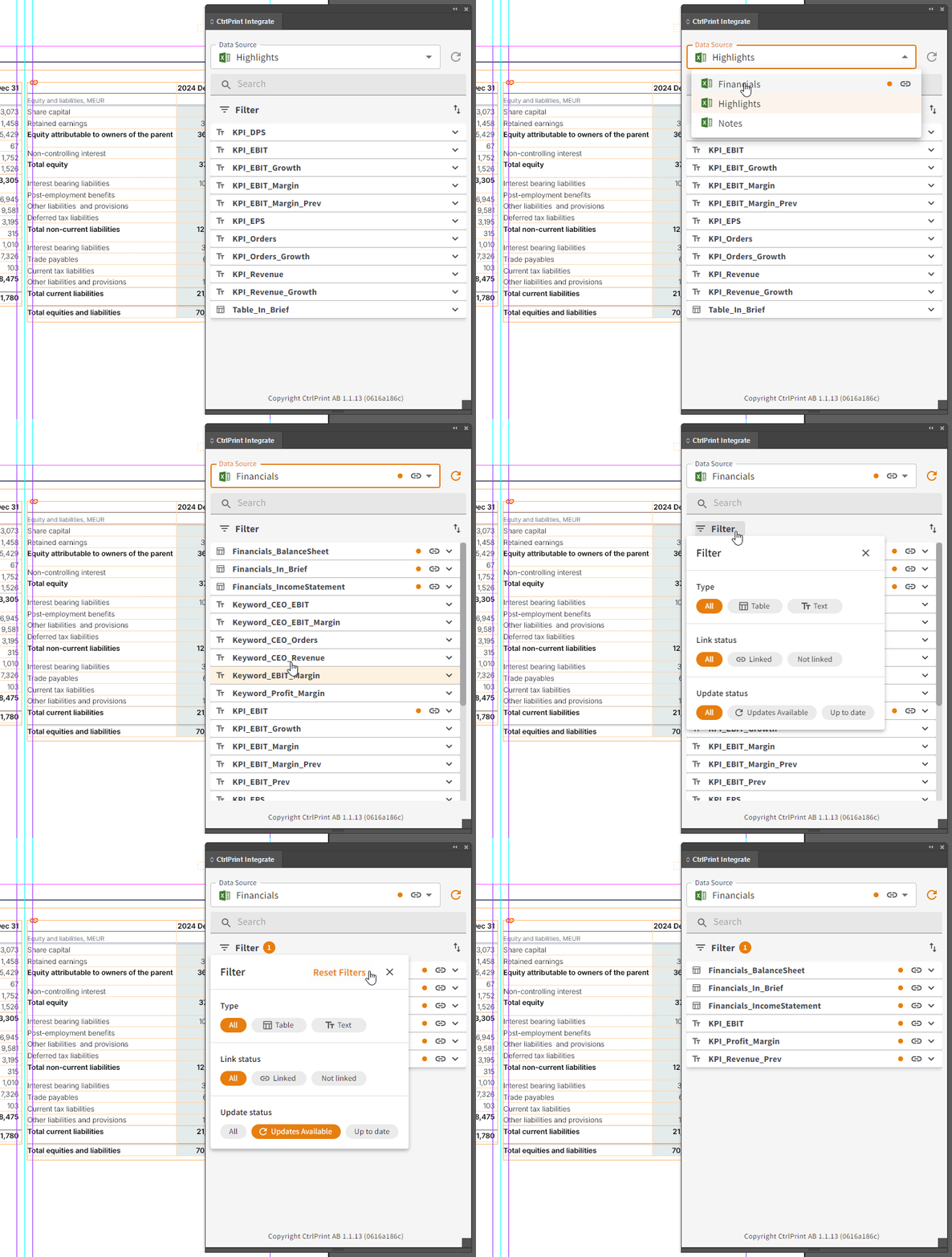
Integrate now warns you when you are about to edit or delete linked tables or linked text, reducing accidental changes.
When you have a long list of named ranges, it is now easier to find what you need. For example, you can:
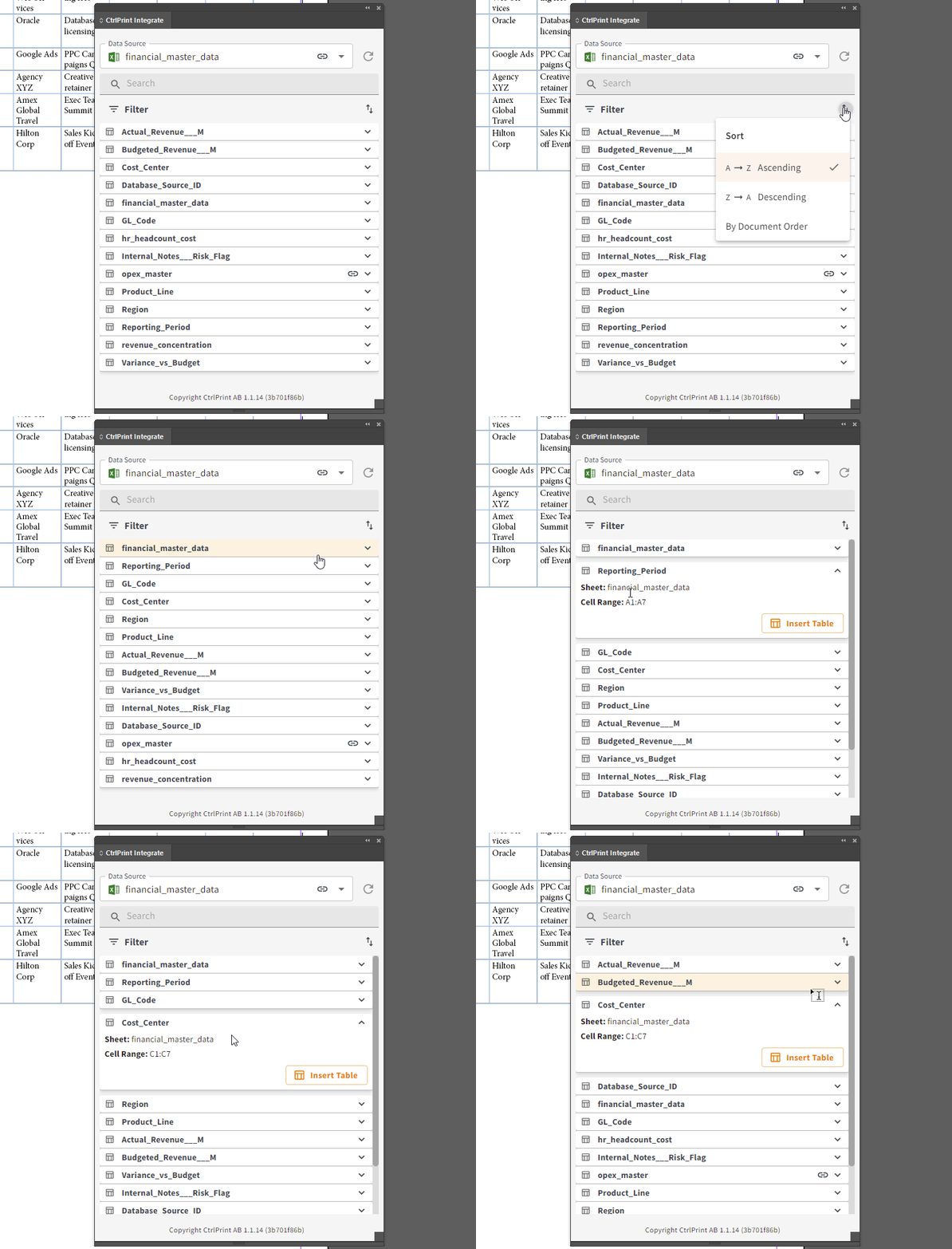
These updates help you move faster between the layout and the source, and reduce friction when sources change.
Click a linked table cell, and Integrate can take you directly to the corresponding named range in the panel, automatically switching data source when needed.
It is now clearer when you are adding a new data source versus updating an existing one, helping teams avoid mistakes and keep source files organised.
You can now open a clearer history view that displays the currently used file version, the original filename, and the version it was promoted from.
Table header rows in InDesign are now handled correctly during updates, so the header stays consistent when you refresh the table content. This reduces manual fixes and helps keep long tables readable across frames and pages.
When inserting content from Excel, you can control how line breaks are handled, so the text flows as expected in InDesign and InCopy. This is especially useful for multi-line cells used in notes, table labels, or structured lists.
We have improved stability when working with advanced table setups, including locked layers, merged cells, and copy-paste between linked tables. This reduces the risk of layout issues after updates and after reopening documents.
Previously, duplicating a project with outdated links could create confusion and extra manual work. Now, when you duplicate a project, CtrlPrint carries over the current data source version and keeps each chapter linked to the exact source version it used. That means you can roll forward faster, with less manual relinking and fewer surprises.
When duplicating a project, Integrate now carries over the same linked data source versions, so chapters stay connected to the exact files they were using. This reduces setup work and avoids accidental changes caused by linking to the wrong version.

Link handling has been improved so you get clearer control over what is linked where, including better visibility when a data source is connected to content that is not currently active. This helps admins and project owners keep governance tight when many chapters and stakeholders are involved.
If you want the full overview of everything released, you can browse the complete update log here.
For step by step guidance, best practices, and troubleshooting, you can find detailed articles in our Support Site
These updates represent our commitment to making CtrlPrint Integrate the most robust, user-friendly reporting tool on the market. Whether you are dealing with last-minute number crunches or rolling forward to a new year, these features are designed to save you time and reduce risk.
All these features are available now. If you want to see how they can transform your specific reporting process:

The digital transformation of corporate compliance in Finland just took a massive leap forward. Following a recent webinar by the Finnish Patent and...

The End of a Project Checklist The months before the next reporting season are the perfect time to get ready. Preparing early ensures a smooth...

In recent years, the audience for corporate reporting has fundamentally changed. While we still write for the human analyst, we are now equally...
%20CtrlPrint%202026%20highlights%20and%20roadmap%20.pptx%20(1).png)
1 min read
Reporting teams work under constant pressure: numbers change late, reviewers add comments across multiple chapters, and deadlines leave little room...

1 min read
ESMA's 2024 ESEF taxonomy update. ESMA decided not to conduct an open consultation because the update contains purely technical amendments.

1 min read
There are some things you should do to avoid losing time Update to v.20 (but keep your older versions) of InCopy/InDesign We highly recommend...